
The Article contains instructions on how to encrypt email that is being sent outside of Central City networks and contains HIPAA / PHI information.
Encrypt outbound messages for secure message transmission. To encrypt an outbound message:
- Log into Outlook or Outlook Web, and select to create, forward, or reply to a message.
- Click the Barracuda Essentials logo to open the Actions panel.
- OutlookWeb – Click the Barracuda Essentials logo in the lower right of the new message
- Outlook – Click the Encrypt Message button in the Outlook ribbon.
-
By default, Encryption is off. Click to toggle Encryption to on. The encryption attachment is added to the message:
Encryption in Outlook Web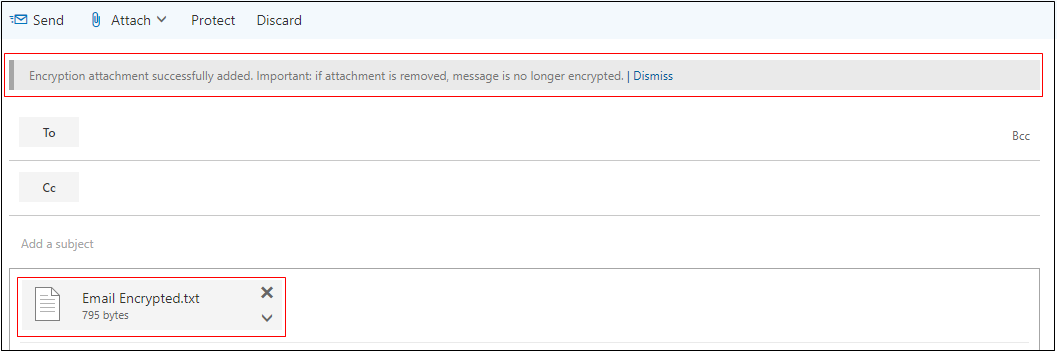
Encryption in Outlook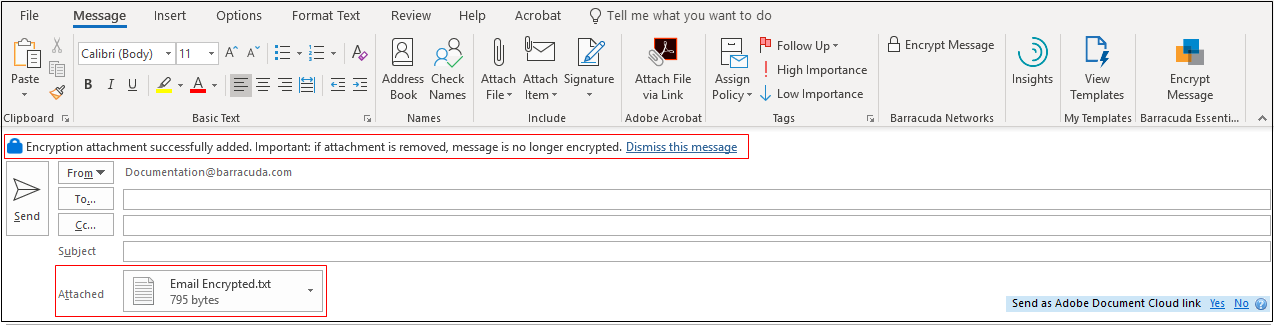
In Outlook:
-
When the message is encrypted, the Encryption (
 ) icon displays at the top of the message.
 -
If you turn off encryption from the Actions panel, the message is not encrypted and the Encryption Off (
 ) icon displays at the top of the message.
-
-
Complete your message, and click Send to send the encrypted message.
Comments
0 comments
Please sign in to leave a comment.